A 4k webcam with autofocus sounds like an easy upgrade: sharper video, better focus, and a more polished look for Zoom calls, YouTube clips, or family chats. The catch is that resolution alone does not guarantee a better picture. A cheap 4K camera pointed at a dim wall can look worse than a good 1080p webcam with sensible exposure and a decent microphone.
The useful question is not “Which webcam has the biggest number?” It is “What will I notice after the novelty wears off?” For most buyers, the answer comes down to three things: autofocus behavior, lighting performance, and how much the camera improves your actual setup. Here is the practical filter I would use before putting one on a credit card.
The three things that actually matter
First, look at autofocus speed and behavior. Autofocus is valuable when you move toward the camera, hold up a document, or switch between a seated meeting and a quick product demonstration. It should lock onto your face without hunting visibly. That pulsing refocus effect is distracting, especially during a presentation. A 4k webcam with autofocus is most useful when its focus system stays calm rather than constantly proving that it exists.
Second, check the lens and field of view. A wide view can fit two people into a frame, but it can also show more of your room than you intended. Around 78 to 90 degrees is comfortable for a single person at a desk. Wider settings make sense for a small team or a standing demonstration. Software cropping can help, but it usually trims detail and weakens the benefit of 4K.
Third, consider lighting. Resolution records more detail; it does not create light. If your desk faces a window, a webcam such as the Logitech MX Brio or Elgato Facecam Pro can produce a clean, detailed image. In a darker room, even a premium model can show noise and dull skin tones. A $25 to $60 key light often improves video more than spending another $100 on the camera.

Is 4K actually worth paying for?
For ordinary video meetings, often not. Zoom, Microsoft Teams, and Google Meet frequently compress video, limit practical resolution, or show your image in a small window. In that situation, a strong 1080p webcam can look perfectly professional. The extra pixels matter more if you record locally, crop footage, stream, teach from a whiteboard, or want flexibility to reframe a shot afterward.
A 4k webcam with autofocus can be a smart middle ground for someone who works from home and also records occasional tutorials. You can capture a wider frame, crop to a tighter view, and retain enough detail for a useful 1080p export. That is a real advantage, not just a spec-sheet trophy. Still, do not buy 4K expecting every call to look four times better. The improvement is usually subtler: cleaner edges, more natural text, and more room to crop.
File size is the less exciting tradeoff. High-resolution recordings consume more storage and can require more processing power. A five-minute clip may be easy to handle on a modern MacBook or Windows laptop, while a long recording can become a storage nuisance. If you mostly join calls and never edit video, the premium is harder to justify.
Autofocus, privacy, and software are part of the product
Autofocus works best when the camera has enough visual information to recognize your face. A very dark room, strong backlight, or busy background can slow it down. Before blaming the webcam, put a lamp in front of you, raise the camera near eye level, and avoid sitting with a bright window directly behind your head.
Software also determines whether the camera feels pleasant. Logitech Options, Elgato Camera Hub, and similar utilities can offer exposure, white balance, field-of-view, and focus controls. Those options are helpful once, then mostly invisible if the camera remembers your settings. A product that requires a separate utility every time you reconnect it is a small but persistent annoyance.
Privacy deserves a practical check. A physical shutter is better than a software promise because it works when the camera is unplugged, asleep, or misbehaving. The Logitech Brio 500 includes a built-in cover, while some higher-end cameras rely on a removable cover or a lens cap. If your desk is in a bedroom, shared space, or family room, a shutter is worth more than another minor image-processing feature.
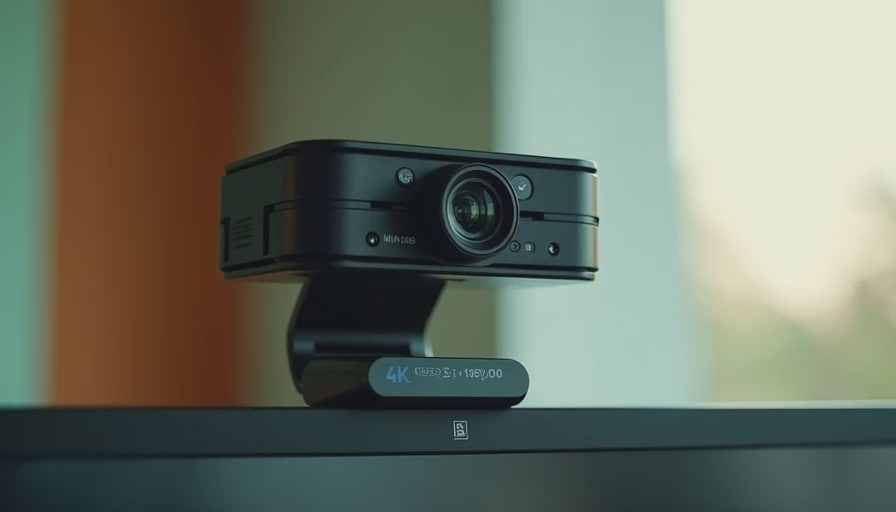
The buying tiers make more sense than chasing the “best” webcam
Under about $80, you can find competent 1080p cameras, but true 4K options often involve compromises in autofocus, microphones, or low-light quality. This range is fine for routine calls when your laptop already has a reasonable camera and you mainly want a better angle or mounting position.
Around $100 to $180 is the practical sweet spot. Models such as the Logitech MX Brio and Insta360 Link 2 sit in the conversation for buyers who want sharper footage, useful software, and better control without entering enthusiast pricing. At this level, a 4k webcam with autofocus earns its place if you record content or move around during calls.
Above $200, you are paying for refined optics, stronger processing, tracking, larger sensors, or creator-oriented controls. Elgato Facecam Pro is aimed more at serious desk video than casual family calls. The Insta360 Link series adds a gimbal-style design and tracking features that can help presenters, instructors, and people who stand while speaking. Those features are convenient, but they are not free; the camera still needs good lighting and a stable connection.
Common mistakes that waste the upgrade
The first mistake is putting a premium webcam on top of a laptop screen while sitting far away. The angle will still be unflattering, and autofocus may frame more room than you want. A monitor mount or small tripod placed at eye level usually creates a larger improvement than another camera setting.
The second is ignoring USB requirements. Some 4K cameras need USB 3 connectivity to deliver their intended resolution and frame rate. Plugging one into an older hub can cause reduced performance, connection drops, or confusing software limits. If the camera behaves strangely, connect it directly to the computer before returning it.
The third is trusting the built-in microphone too much. A webcam microphone is convenient, not magical. It can pick up keyboard noise, air conditioning, and a child asking for a snack during a meeting. For frequent calls, wired earbuds or a basic USB microphone can improve speech more than a jump from 1080p to 4K.
My buy, skip, or wait call
Buy a 4k webcam with autofocus if you record video, demonstrate physical products, crop your footage, teach online, or regularly move between positions. You will have a reason to use the extra resolution and autofocus instead of merely admiring the box.
Choose a good 1080p model if your main activity is ordinary video meetings and your lighting is average. Put the savings toward a small front-facing light, a monitor arm, or better audio. Those changes are easier to notice during a 30-minute call and usually create less setup friction.
Wait if your current camera already looks clear, your calls are compressed, and you rarely record. A camera upgrade is not automatically productive gear. If I were buying this for myself today, I would first improve the light and camera position, then choose a 4K model only if recording or cropping mattered. Buy the version you will still like after the excitement wears off—not the one with the most impressive resolution printed on the package.


No comments yet — be the first to share a thought.